
How to Install the Puny.io MCP Connector for Claude AI
Tutorial
Connect Puny's secure link shortening and sharing platform directly to Claude using the Model Context Protocol—and start shortening URLs through natural conversation.
If you've ever wanted to shorten, password-protect, or track links without leaving your AI conversation, the Puny.io MCP Connector makes it possible. With just a few clicks inside Claude's settings, you can give Claude direct access to Puny's full suite of secure link shortening tools—no API keys, no terminal commands, no code required.
This guide walks you through the entire installation process, from locating the Connectors panel in Claude to verifying your first shortened link. Whether you're a marketer managing campaign URLs, a developer streamlining documentation links, or simply someone who values link privacy, this tutorial has you covered.
What Is the Model Context Protocol (MCP)?
The Model Context Protocol, or MCP, is an open standard introduced by Anthropic in late 2024 that enables AI assistants like Claude to communicate securely with external tools and data sources. Think of it as the universal adapter that lets Claude reach out beyond its conversation window and interact with real services on your behalf.
Before MCP, if you wanted an AI to shorten a link, you'd need to write code, call an API manually, and paste the results back into your chat. MCP eliminates all of that friction. When a service like Puny.io publishes an MCP server, Claude can discover its available tools automatically, authenticate through a secure OAuth flow, and invoke those tools directly within your conversation.
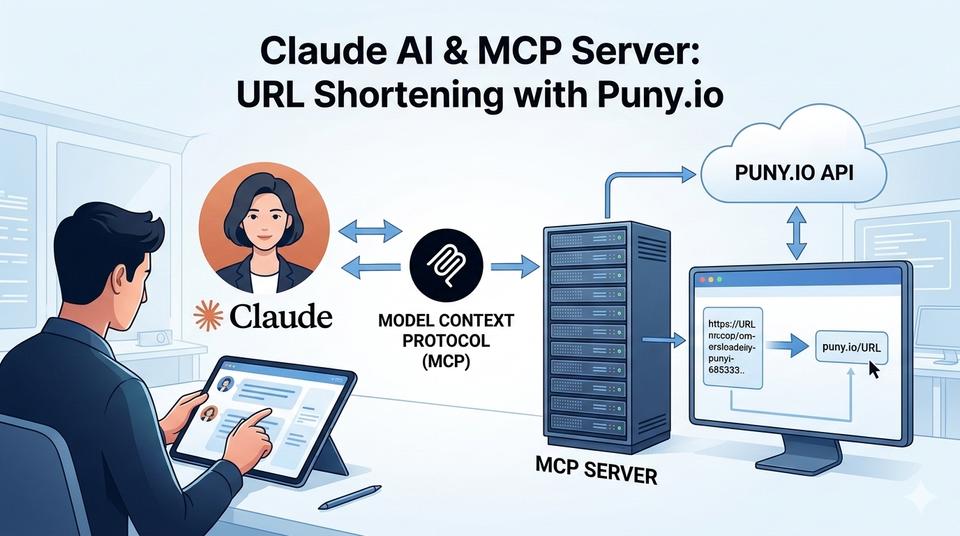
🔗 MCP Architecture Overview
Claude Puny.io's MCP server, which acts as a secure bridge between the AI and Puny's link shortening engine.The Model Context Protocol creates a standardized bridge between AI assistants and external services.
The key benefit is that MCP connectors operate within your existing permissions. Claude can only perform actions you've authorized—and you can revoke access at any time.
What Is Puny.io?
Puny.io is a secure link shortening and sharing platform designed with privacy and flexibility at its core. Unlike traditional URL shorteners, Puny goes beyond simply truncating long URLs. It provides features built for teams, developers, and security-conscious professionals who need control over how their links behave and who can access them.
🔒 Password Protection
Lock any shortened link behind a password so only authorized recipients can access the destination.
⏱️ Expiring Links
Set expiration dates on links for time-sensitive campaigns, event invitations, or secure document sharing.
📁 Organization
Group shortened links into folders for campaigns, clients, or projects—keeping everything tidy.
🌐 Custom Domains
Use your own branded domain for shortened links, maintaining trust and consistency with your audience.
🔗 Bulk Shortening
Shorten many URLs at once—from arrays, text passages, or even file paths—in a single operation.
🤖 MCP-Native
Purpose-built for AI integration. Claude can shorten, protect, and organize your links through natural conversation.
Before You Begin
To install the Puny.io MCP Connector, make sure you have:
- A Claude Pro, Max, Team, or Enterprise account (MCP connectors require a paid plan)
- A Puny.io account (you'll authenticate via OAuth during setup)
- Access to Claude.ai through a web browser (desktop recommended for easiest setup)
ℹ️ Good to Know
The Puny.io MCP Connector uses OAuth authentication, which means Claude never sees your Puny.io password. You'll authorize Claude through Puny's own login page, and you can revoke access anytime from either Claude's settings or your Puny.io account.
Step-by-Step Installation
The entire process takes about two minutes. Here's how to connect Puny.io to Claude:
Step 1: Settings
Navigate to claude.ai in your web browser. Click your profile icon in the bottom-left corner of the sidebar, then select "Settings" from the dropdown menu.
⚙️ Claude Settings Menu - Click your profile icon in the sidebar, then select "Settings" to access the Connectors panel.The Settings option is located in the profile dropdown at the bottom of Claude's sidebar.2
Step 2: Navigate to Connectors
In the Settings panel, look for the "Connectors" section in the left sidebar. Click it to reveal your currently configured connectors and the option to add new ones.
If this is your first connector, you'll see a clean slate with a button to get started.
Step 3: Add a Custom Connector
Scroll to the bottom of the Connectors section and click "Add custom connector". A dialog will appear prompting you to enter the remote MCP server URL. This is the critical step—here's the URL you need:
https://mpc.puny.io/mcp
Paste this URL into the MCP Server URL field. You typically won't need to modify any advanced settings like OAuth Client ID or Secret—Puny handles that automatically. Click "Add" to proceed.
📋 Add Custom Connector Dialog - Paste the Puny.io MCP server URL into the input field and click "Add" to initiate the connection.The "Add custom connector" dialog where you paste the Puny.io MCP server URL.
Step 4: Authenticate with Puny.io
After clicking Add, Claude will redirect you to Puny.io's OAuth authorization page. Sign in with your Puny.io credentials (or create an account if you don't already have one).
You'll see a permissions screen showing exactly what Claude will be able to do on your behalf—typically shortening links and managing your link library. Review the permissions and click "Authorize" to grant access.
Step 5: Verify the Connection
Once authentication completes, you'll be redirected back to Claude's Settings page. The Puny connector should now appear in your Connectors list with a "Connected" status. You can click on it to view or disable specific tools if you prefer.
To confirm everything works, start a new conversation with Claude and try a simple request:
Prompt
Shorten this link for me: https://example.com/very/long/path/to/resource?ref=campaign123
Claude will invoke the Puny.io connector, shorten the URL, and return the result—all within the conversation. You should see a clean shortened link in response.
✅ Success!
If Claude returns a shortened Puny.io link, your connector is fully operational. You're ready to start using all of Puny's features through natural conversation.
What You Can Do with the Puny.io Connector
Once connected, the Puny.io MCP Connector exposes a powerful shorten_links tool that supports a wide range of input scenarios. Here's a breakdown of the most useful operations you can perform through conversation:
Shorten a Single URL
The most straightforward use case. Just paste any URL and ask Claude to shorten it.
Example Prompt"Please shorten https://docs.example.com/api/v2/reference/authentication"
Shorten Multiple URLs at Once
Pass a list of URLs and Claude will process them all in a single batch operation.
Example Prompt"Shorten all of these links for me:
- https://example.com/page-one
- https://example.com/page-two
- https://example.com/page-three"
Password-Protect a Link
For sensitive content, you can ask Claude to create a shortened link that requires a password to access.
Example Prompt"Shorten https://drive.google.com/file/d/abc123/view and set the password to 'Q3Report2026'"
Set Link Expiration
Create time-limited links that automatically expire after a set date.
Example Prompt"Shorten this event registration link and set it to expire on April 15th:
https://events.example.com/register/spring-conference-2026"
Extract & Shorten Links from Text
Paste an entire block of text—an email, a document, a Slack message—and Claude will find all URLs within it and shorten them.
Example Prompt"Find and shorten all links in this text:
Hey team, here are the resources for tomorrow's standup:
Figma mockups: https://figma.com/file/really-long-id-here
Sprint board: https://jira.example.com/boards/42/backlog
Meeting notes: https://notion.so/team/meeting-notes-march-2026-abc123"
Use a Custom Domain
If your Puny.io account has a custom domain configured, you can specify which domain to use for the shortened link.
Example Prompt"Shorten https://example.com/whitepaper using my custom domain links.mycompany.com"
Organize Links into Folders
Keep your shortened links tidy by specifying a folder during creation.
Example Prompt"Shorten these three links and put them in my 'Q1 Campaign' folder:
https://landing.example.com/promo-a
https://landing.example.com/promo-b
https://landing.example.com/promo-c"
Full Parameter Reference
For power users and developers, here's a complete reference of the parameters the Puny.io connector accepts. Claude maps your natural language instructions to these parameters behind the scenes:
| Parameter | Purpose |
|---|---|
url / urls / links | Single URL or arrays of URLs to shorten |
text | A block of text—Claude extracts and shortens all URLs found within it |
password | Applies a password to all shortened links in the request |
passwordByUrl | Set different passwords per URL (for granular control) |
expiredAt | Expiration date/time for the shortened link |
domain | Custom domain to use for the short link |
folder | Destination folder for organization |
masked | Whether to mask the destination URL |
deduplicate | Avoid creating duplicate short links for the same destination |
meta | Custom metadata to attach to the link |
source / sources | Source URL(s) for tracking and attribution |
filePaths | File paths containing URLs to shorten (for batch processing) |
continueOnError | If one link fails, continue processing the rest |
For Developers: Using Puny.io via the Claude API
If you're building applications on top of the Anthropic API, you can include the Puny.io MCP server directly in your API calls. This lets your programmatic workflows leverage Puny's link shortening without any manual setup in the Claude.ai UI.
Const response = await fetch("https://api.anthropic.com/v1/messages", {
method: "POST",
headers: {
"Content-Type": "application/json",
"X-API-Key": process.env.ANTHROPIC_API_KEY,
"anthropic-version": "2023-06-01",
"anthropic-beta": "mcp-client-2025-11-20"
},
body: JSON.stringify({
model: "claude-sonnet-4-20250514",
max_tokens: 1024,
messages: [{
role: "user",
content: "Shorten this link: https://example.com/long-url"
}],
mcp_servers: [{
type: "url",
url: "https://mpc.puny.io/mcp",
name: "puny"
}]
})
});⚠️Beta Header Required
The MCP connector feature requires the beta header anthropic-beta: mcp-client-2025-11-20. Be sure to include it in your API requests, as the feature won't work without it.
Using Puny.io with Claude Code
If you use Claude Code (Anthropic's command-line tool for agentic coding), MCP servers you've added in Claude.ai are automatically available. That means once you've installed the Puny.io connector through the web interface, Claude Code can invoke it immediately.
For example, while working in a codebase, you could ask Claude Code to shorten documentation URLs in your README, create password-protected links for staging environments, or generate shortened links for deployment notifications.
Real-World Scenarios
Here are some practical ways teams are using the Puny.io connector with Claude today:
Marketing & Campaign Management
Paste your campaign brief into Claude and ask it to shorten all the UTM-tagged landing page URLs, organized into folders by channel. Apply expiration dates that match your campaign end dates, and password-protect any links to pre-launch content.
Engineering & Documentation
When sharing complex API documentation or internal wiki links in Slack or email, ask Claude to shorten them on the fly. Batch-process entire changelogs or release notes to create a clean set of short links for distribution.
Security-Sensitive Sharing
For legal documents, financial reports, or HR resources, use password-protected links with expiration dates. This provides a quick, auditable layer of access control on top of your existing file sharing.
Content Creation
Writing a newsletter or blog post with many outbound links? Paste the draft into Claude and ask it to find and shorten every URL in the text. Claude returns the updated text with clean Puny.io short links in place.
Troubleshooting
If you run into issues, here are the most common solutions:
Connector Shows "Disconnected"
This usually means the OAuth session has expired. Go to Settings → Connectors, remove the Puny connector, and re-add it using the same MCP URL. You'll be prompted to re-authenticate.
Claude Doesn't Recognize the Puny Tool
Make sure you're using the correct MCP server URL (https://mpc.puny.io/mcp). Also check that you have the Puny connector enabled in the Search and tools menu within your conversation. Occasionally toggling it off and on resolves detection issues.
Permission Errors
If Claude reports that it can't perform an action, verify that your Puny.io account has the necessary tier or permissions for the feature you're requesting (for example, custom domains may require a specific plan level).
💡Pro Tip
You can also view a live example of the Puny.io connector in action by visiting this shared Claude conversation, which demonstrates multiple shortening scenarios.
Managing & Revoking Access
You stay in full control of the Puny.io connector at all times. To manage or disconnect it:
- Navigate to Settings → Connectors in Claude.ai
- Click on the Puny connector to expand its options
- Toggle individual tools on or off to limit what Claude can do
- Click "Disconnect" to fully revoke Claude's access
You can also revoke OAuth permissions from your Puny.io account's security settings if you prefer to manage it from that side.
Start Shortening Smarter
The Puny.io MCP Connector transforms link management from a manual chore into a natural part of your AI workflow. Whether you're shortening a single URL or batch-processing hundreds of links from a document, the integration is seamless, secure, and entirely conversation-driven.
With features like password protection, expiring links, custom domains, and folder organization all accessible through plain language, there's no reason to keep switching between tabs just to shorten a URL.
Ready to Connect?
Install the Puny.io MCP Connector in under two minutes and start shortening links with Claude.

Member discussion