
How to Install the Landed.net MCP Connector for Claude AI
If you've ever wanted to create and publish a complete website without leaving your AI chat, the Landed.net MCP Connector makes it possible. With just a few clicks in Claude's settings, you can give Claude direct access to Landed's AI-powered website builder—no coding, no separate dashboards, no switching tabs.
This guide walks you through the complete installation process, from adding the connector in Claude to publishing your first AI-generated website. Whether you're a marketer needing quick landing pages, a small business owner exploring web presence options, or a developer prototyping client sites, this tutorial has everything you need.
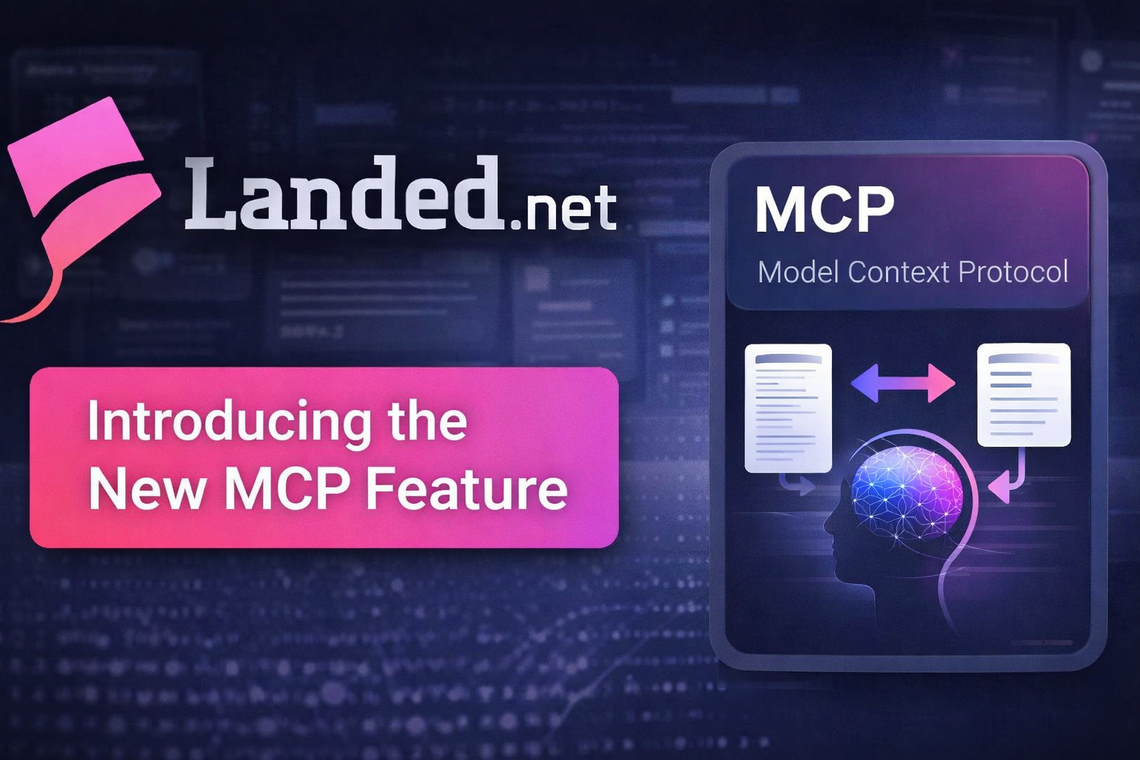
What Is the Model Context Protocol (MCP)?
The Model Context Protocol, or MCP, is an open standard introduced by Anthropic in late 2024 that enables AI assistants like Claude to communicate securely with external tools and data sources. Think of it as the universal adapter that lets Claude reach beyond conversation and interact with real services on your behalf.
Before MCP, if you wanted an AI to build a website, you'd need to manually copy prompts between tools, configure API calls, export HTML files, and upload them to hosting platforms yourself. MCP eliminates all of that friction. When a service like Landed.net publishes an MCP server, Claude can discover its available tools automatically, authenticate through a secure flow, and invoke those tools directly within your conversation.
MCP Architecture Overview
The Model Context Protocol creates a standardized bridge between AI assistants and external services. Claude connects to Landed.net's MCP server, which acts as a secure interface between the AI and Landed's website creation and publishing engine.
The key benefit is that MCP connectors operate within your existing permissions. Claude can only perform actions you've authorized—and you can revoke access at any time.
What Is Landed.net?
Landed.net is an AI-powered website builder designed to go from idea to published site in seconds. Unlike traditional website builders that require dragging components, selecting templates, and configuring hosting, Landed uses artificial intelligence to generate complete, professional websites from simple prompts.
⚡ AI-Powered Generation
Describe what you need in plain language—Landed's AI creates the design, content, and structure automatically.
🎨 Professional Templates
Every site is built with modern, responsive design patterns that work beautifully across devices.
🌐 Instant Publishing
No separate hosting setup required. Sites go live on Landed.net domains immediately, with custom domain support available.
🔄 Conversational Editing
Make changes by describing what you want—no need to learn a visual editor or code.
🤖 MCP-Native
Purpose-built for AI integration. Claude can create, edit, and publish your sites through natural conversation.
🚀 Lightning Fast
From first prompt to published website in under 30 seconds.
Before You Begin
To install the Landed.net MCP Connector, make sure you have:
- A Claude Pro, Max, Team, or Enterprise account (MCP connectors require a paid plan)
- A Landed.net account (you'll authenticate during setup)
- Access to Claude.ai through a web browser (desktop recommended for easiest setup)
ℹ️ Good to Know
The Landed.net MCP Connector uses secure authentication, which means Claude operates within your Landed.net permissions. You'll authorize Claude through Landed's authentication flow, and you can revoke access anytime from either Claude's settings or your Landed.net account.
Step-by-Step Installation
The entire process takes about two minutes. Here's how to connect Landed.net to Claude:
Step 1: Open Settings
Navigate to claude.ai in your web browser. Click your profile icon in the bottom-left corner of the sidebar, then select "Settings" from the dropdown menu.
⚙️ Claude Settings Menu - Click your profile icon in the sidebar, then select "Settings" to access the Connectors panel.
Step 2: Navigate to Connectors
In the Settings panel, look for the "Connectors" section in the left sidebar. Click it to reveal your currently configured connectors and the option to add new ones.
If this is your first connector, you'll see a clean slate with a button to get started.
Step 3: Add a Custom Connector
Scroll to the bottom of the Connectors section and click "Add custom connector". A dialog will appear prompting you to enter the remote MCP server URL and OAuth credentials. Here's what you need to enter:
MCP Server URL:
https://mcp.landed.net/mcp
OAuth Client ID:
claude
Paste the MCP server URL into the MCP Server URL field, then enter claude in the OAuth Client ID field. You won't need to modify any other advanced settings. Click "Add" to proceed.
📋 Add Custom Connector Dialog - Paste the Landed.net MCP server URL and enter the OAuth Client ID, then click "Add" to initiate the connection.
Step 4: Authenticate with Landed.net
After clicking Add, Claude will initiate the authentication flow with Landed.net. Follow the prompts to sign in with your Landed.net credentials (or create an account if you don't already have one).
You'll see a permissions screen showing exactly what Claude will be able to do on your behalf—typically creating sites, updating content, and publishing. Review the permissions and click "Authorize" to grant access.
Step 5: Verify the Connection
Once authentication completes, you'll be redirected back to Claude's Settings page. The Landed connector should now appear in your Connectors list with a "Connected" status. You can click on it to view or disable specific tools if you prefer.
To confirm everything works, start a new conversation with Claude and try a simple request:
Example Prompt:
Create a website for a local coffee shop called "The Daily Grind" using Claude - we're a neighborhood café specializing in single-origin pour-overs and homemade pastries. Make it warm and inviting. Publish the HTML to landed.net
Claude will invoke the Landed.net connector, generate the complete website, and publish it for you—all within the conversation. You should see a preview link to your new Landed.net site.
✅ Success!
If Claude returns a Landed.net site preview, your connector is fully operational. You're ready to start building websites through conversation.
What You Can Do with the Landed.net Connector
Once connected, the Landed.net MCP Connector gives Claude powerful website creation capabilities. Here's what you can accomplish through natural conversation:
Create a Complete Website from Scratch
The most straightforward use case. Describe what you need and Claude generates the entire site, then publishes it to Landed.net.
Example Prompt:
Build me a portfolio website for a freelance graphic designer using Claude. Include sections for About, Portfolio, Services, and Contact. Make it modern and minimalist with bold typography. Publish the HTML to landed.net
Create Landing Pages for Specific Campaigns
Generate targeted landing pages for marketing campaigns, product launches, or events.
Example Prompt:
Create a landing page for our Q2 product launch using Claude - it's a project management tool called "FlowState" aimed at remote teams. Emphasize collaboration features and include a waitlist signup form. Publish the HTML to landed.net
Build Client Websites Quickly
For agencies or freelancers, use Claude to prototype client sites based on brief descriptions.
Example Prompt:
Create a website for a boutique law firm specializing in estate planning using Claude. They need a professional, trustworthy design with sections for Attorney Bios, Practice Areas, Testimonials, and Contact. Publish the HTML to landed.net
Generate Multiple Site Variations
Test different approaches by generating variations of the same concept.
Example Prompt:
Create three different homepage designs for a fitness studio - one energetic and bold, one calm and wellness-focused, and one premium and exclusive using Claude. Then publish to landed.net
Edit and Refine Existing Sites
Make changes to sites you've already created through conversational instructions. Simply describe the changes you want—no need to republish manually.
Example Prompt:
Change the hero section headline to "Transform Your Workflow" and add a testimonials section with three client quotes.
The connector handles updates seamlessly, so you can iterate on your site design through natural conversation.
Create Websites from Uploaded Documents
Upload a document with your content and have Claude build a site from it.
Example Prompt:
I've uploaded our company overview document. Create a professional corporate website based on this content using Claude - include all the service descriptions and team bios. Publish the HTML to landed.net
Real-World Scenarios
Here are some practical ways people are using the Landed.net connector with Claude today:
Small Business Owners
Instead of spending weeks learning a website builder or hiring an agency, small business owners describe their business to Claude and get a complete, published website in minutes. Perfect for restaurants, retail shops, service providers, and local businesses that need a web presence quickly.
Marketing Teams
Rapidly prototype landing pages for campaigns without waiting on design or development resources. Test multiple messaging approaches, generate pages for different audience segments, or create event-specific microsites—all through conversation.
Freelancers & Agencies
Speed up client onboarding by generating initial website concepts during discovery calls. Instead of sketching wireframes or explaining possibilities, show clients actual working sites based on their description. Iterate in real-time based on feedback.
Content Creators
Turn blog posts, courses, or digital products into dedicated landing pages. Upload your content document and let Claude structure it into a professional website with proper sections, navigation, and calls-to-action.
Rapid Prototyping
For developers and designers exploring concepts, Claude + Landed provides the fastest path from idea to clickable prototype. Test concepts, validate approaches, or demonstrate possibilities without writing code.
How It Actually Works
When you prompt Claude to create a website, here's what happens behind the scenes:
- Claude analyzes your request - understanding the purpose, tone, content needs, and target audience
- Claude calls Landed's create_site tool - passing structured parameters about what to build
- Landed's AI generates the site - creating layout, design, content, images, and structure
- The site is published automatically - going live on Landed.net with a preview URL
- Claude returns the preview link - you can view your live site immediately
- You refine through conversation - making changes through follow-up prompts as needed
The entire flow stays within your Claude conversation. No context switching, no external dashboards, no manual configuration. Your site is live from the first prompt.
For Developers: Using Landed.net via the Claude API
If you're building applications on top of the Anthropic API, you can include the Landed.net MCP server directly in your API calls. This lets your programmatic workflows leverage Landed's website creation without any manual setup in the Claude.ai UI.
const response = await fetch("https://api.anthropic.com/v1/messages", {
  method: "POST",
  headers: {
    "Content-Type": "application/json",
    "X-API-Key": process.env.ANTHROPIC_API_KEY,
    "anthropic-version": "2023-06-01",
    "anthropic-beta": "mcp-client-2025-11-20"
  },
  body: JSON.stringify({
    model: "claude-sonnet-4-20250514",
    max_tokens: 4096,
    messages: [{
      role: "user",
      content: "Create a website for a yoga studio called Zen Flow using Claude - focus on calm, peaceful aesthetics. Publish the HTML to landed.net"
    }],
    mcp_servers: [{
      type: "url",
      url: "https://mcp.landed.net/mcp",
      name: "landed"
    }]
  })
});
⚠️ Beta Header Required
The MCP connector feature requires the beta header anthropic-beta: mcp-client-2025-11-20. Be sure to include it in your API requests, as the feature won't work without it.
Using Landed.net with Claude Code
If you use Claude Code (Anthropic's command-line tool for agentic coding), MCP servers you've added in Claude.ai are automatically available. That means once you've installed the Landed.net connector through the web interface, Claude Code can invoke it immediately.
For example, while working in a codebase, you could ask Claude Code to generate a documentation site, create a demo landing page for your project, or build a marketing page for your open-source tool—all without leaving the terminal.
Troubleshooting
If you run into issues, here are the most common solutions:
Connector Shows "Disconnected"
This usually means the authentication session has expired. Go to Settings → Connectors, remove the Landed connector, and re-add it using the same MCP URL. You'll be prompted to re-authenticate.
Claude Doesn't Recognize the Landed Tool
Make sure you're using the correct MCP server URL (https://mcp.landed.net/mcp). Also check that you have the Landed connector enabled in the Search and tools menu within your conversation. Occasionally toggling it off and on resolves detection issues.
Site Creation Fails
Verify that your Landed.net account is in good standing and has available site creation capacity. Some account tiers have limits on active sites or monthly creations. Also ensure your prompt includes both "using Claude" and "Publish the HTML to landed.net" for the connector to work properly.
💡 Pro Tip
You can see the Landed.net connector in action in this example conversation (replace with actual shared conversation link when available), which demonstrates creating multiple site variations.
Managing & Revoking Access
You stay in full control of the Landed.net connector at all times. To manage or disconnect it:
- Navigate to Settings → Connectors in Claude.ai
- Click on the Landed connector to expand its options
- Toggle individual tools on or off to limit what Claude can do
- Click "Disconnect" to fully revoke Claude's access
You can also manage connected applications from your Landed.net account settings if you prefer to control it from that side.
Start Building Smarter
The Landed.net MCP Connector transforms website creation from a multi-tool workflow into a natural conversation. Whether you're building your first business site or your hundredth client project, the integration makes it seamless, fast, and entirely conversation-driven.
With AI-powered design, instant publishing, and full editing control through plain language, there's no reason to spend hours in traditional website builders when you can describe what you want and have it built in seconds.
Ready to Connect?
Install the Landed.net MCP Connector in under two minutes and start building websites with Claude.
Published by:
Taylor Wright